
2.1.4. Creating Interaction, Dummy and Lag/Lead Variables
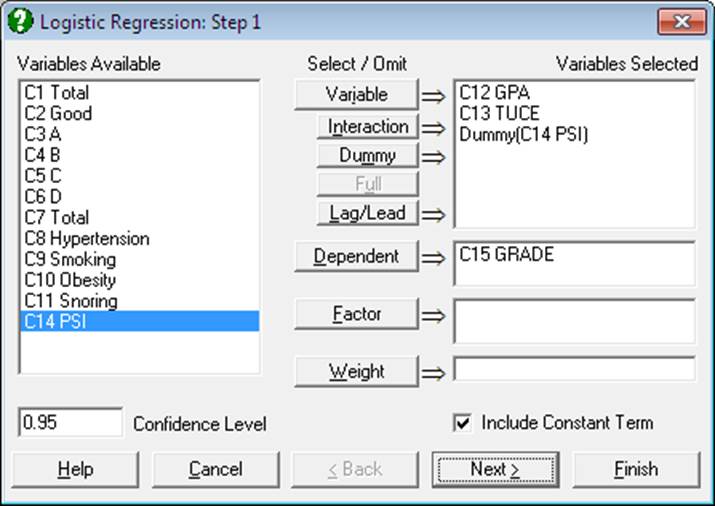
In most regression models, it is possible to add new terms to the model using transformations of existing variables, thus eliminating the need to create them as data columns in the spreadsheet beforehand. In these procedures, interaction, dummy and lag/lead terms can be specified during the variable selection phase. The program will then create these terms internally in its temporary memory. This feature is available in the following procedures:
Statistics 1 →
Statistics 1 → Regression Analysis →
Statistics 2 → Survival Analysis →
Although it is not a regression procedure as such, this feature is also included in the Matrix Statistics procedure to provide you with information on the terms of the models selected in other regression procedures. A particularly useful feature here is the option to send the entire final raw data (X) matrix of the regression model to the Output Medium, so that you can see the actual values of the interaction, dummy and lag/lead terms generated by the program internally. In Stand-Alone Mode, this output can then be sent to the Data Processor and used in other procedures if necessary (see 7.1. Matrix Statistics).
In the Variable Selection Dialogue of the above procedures, up to four smaller buttons [Interaction], [Dummy], [Full] and [Lag/Lead] will appear just under the [Variable] button. The Cox Regression procedure does not have a [Lag/Lead] button, as it is irrelevant for this procedure.
The behaviour of these buttons differs from other standard task buttons in that:
1) They can be used to select items from both the Variables Selected list, as well as the Variables Available list.
2) When they are used on a selection, the source (selected) items are not omitted from the list.
3) To de-select the new variables created by these buttons from the Variables Selected list, the [Variable] button should be used (not the button with which they were created).
The functionality of these buttons are as follows:
Interaction: This button becomes activated when one or more items are selected from one of the Variables Available or Variables Selected lists. If only one variable is highlighted, then a new term will be added to the Variables Selected list, which is the product of this variable by itself, e.g. C2 Wages x C2 Wages. If two variables are highlighted, then the new term will be the product of these two variables, e.g. C10 Region x C11 Type. Maximum three-way interactions are allowed. Interactions of string, date, time, dummy or lag/lead variables are not allowed. In order to create interaction terms for dummy variables, create interactions first, and then create dummy variables for them.
A special cross sign is used between the variables in an interaction term. If there is a problem with this character on a non-English operating system, you can enter and edit the following line in Unistat65.ini file under the [Options] group to display any other character (say *):
InteractionCross=x
This sign also appears in ANOVA and GLM output with interaction terms.
Dummy: This button is used to create n new (dummy) variables for a factor column containing n levels. Each dummy variable corresponds to a level of the factor column. A case in a dummy column will have the value of 1 if the factor contains the corresponding level in the same row, and 0 otherwise.
One or more categorical variables can be selected from one of the Variables Available or independent variables lists. A new entry will be created in the independent variables list in the form of Dummy(C10 Region). If the selection contains interactions, dummies will be created in the form of Dummy(C10 Region x C11 Type).
Sometimes, it may be important to select the interaction terms in a specific order which may be different to their default order in the Variables Available list. In this case, you can select the columns for the independent variables list by clicking on the [Variable] button in the desired order before selecting them for interactions or dummies.
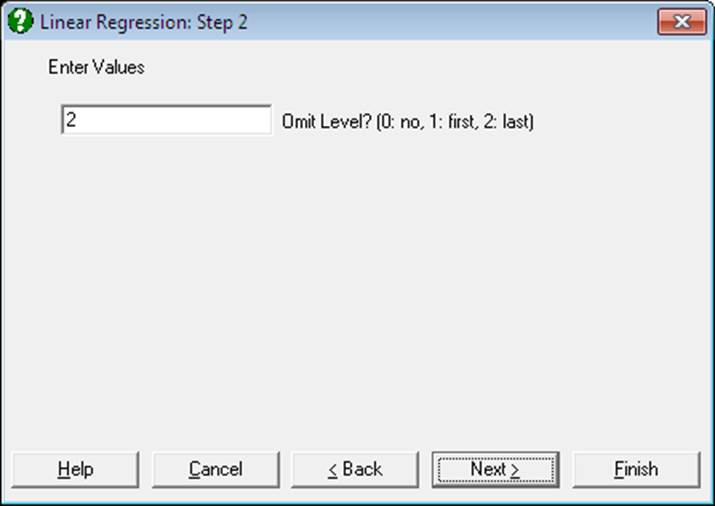
Once one or more dummy variables have been included in the model, the next dialogue will ask whether you wish to include all dummy variables corresponding to all levels of a factor (or an interaction term of factors), or omit the first level or the last level. This dialogue may have other fields in some procedures. The purpose of this exercise is to provide you with a facility to remove the linear dependencies created when all levels of factors are included in the model. For example, suppose the first option was selected and a dummy variable created for each level of a factor. This results in an over-parameterised model, since the full set of dummy variables for any factor will always add up to the unity vector. If a model is run in this configuration, the regression algorithm will detect and omit the dummy variables that cause the collinearity as and when they occur. In regression models where a constant term is included, UNISTAT will naturally omit the last dummy variable for each factor, and each factor with i levels will end up contributing (i – 1) degrees of freedom to the model (if no other dependencies exist in data). The interaction terms will also include dummy variables for all possible combinations of their individual factor levels. Again, if no other dependencies exist, they will only contribute to the model with (i – 1)(j – 1) degrees of freedom in the case of a two-way interaction and (i – 1)(j – 1)(k – 1) in the case of a three-way interaction. However, if a constant term is not included in the model, then all levels of the first factor will be included. You are advised to consider these issues before running a model with dummy variables and omit either the first or the last level in order not to end up with unexpected results.
If you wish to omit levels other than the first or last, or include dummy variables with values other than 0 or 1 (i.e. in order to apply contrasts), it is advised that you construct dummy variables as data columns first. In Stand-Alone Mode, you can do this automatically using the Data Processor’s Dummy() function (see 3.4.2.5. Statistical Functions). Dummy variables created in this way should be included in the analysis by selecting them as [Variable]s.
Full: This button becomes active when two or more items are selected from one of the independent variables or Variables Available lists. Dummy variables for each column selected, as well as dummies for all possible interaction terms (up to 3-way) will be created automatically. The number of new independent variables added to the model is determined by the number of distinct values (levels) of the selected columns. For each interaction term, this number is equal to the product of the number of levels in all variables in the term.
For example, suppose two columns are highlighted, C10 Region and C11 Type. Then the following three terms will be created: Dummy(C10 Region), Dummy(C11 Type), Dummy(C10 Region*C11 Type). If four columns are highlighted, C1, C2, C3, C4, then 14 new dummy terms will be created in the following order: Dummy(C1), Dummy(C2), Dummy(C3), Dummy(C4), Dummy(C1*C2), Dummy(C1*C3), Dummy(C1*C4), Dummy(C2*C3), Dummy(C2*C4), Dummy(C3*C4), Dummy(C1*C2*C3), Dummy(C1*C2*C4), Dummy(C1*C3*C4), Dummy(C2*C3*C4). Also suppose that C1, C2, C3, C4 contain 2, 3, 4, 5 levels respectively. Then the total number of variables added to the model will be 239.
WARNING! Ensure that the columns selected as Dummy are categorical variables containing a limited number of distinct values.
Lag/Lead: This button is used to create new variables by shifting the rows of an existing variable up or down. If you highlight some columns and click on the [Lag/Lead] button, these will be transferred to the Variables Selected list as Lag(C1 Label1;0), Lag(C2 Label2;0), etc. In this case, after clicking [Next] a further dialogue will ask for the size of the lags (or leads) for each [Lag/Lead] variable selected.
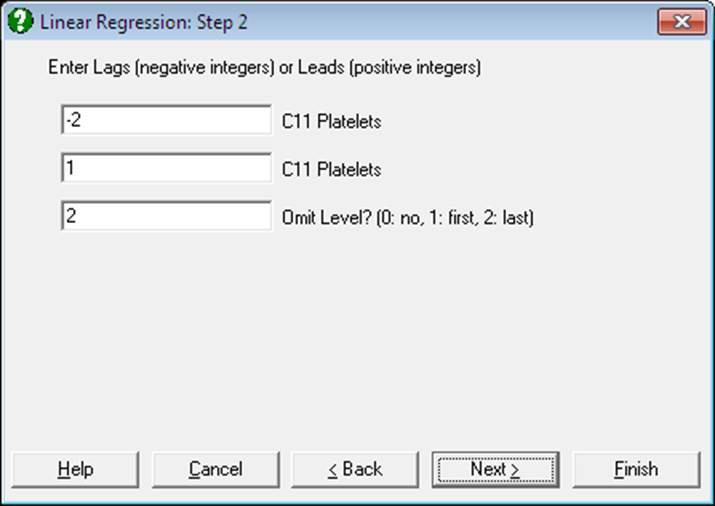
You can select the same variable an unlimited number of times, in order to include it in the model with different sizes of lags/leads. Enter a negative integer to define a selection as a lag and a positive integer for a lead. Leaving an entry as zero means that the selected variable will be included in the model without modification. When, for instance, -2 is entered for a lag, the program will create a new variable internally, starting from the third case of the original column. Therefore this variable will have two observations missing at the end. On the other hand, when 2 is entered for a lead variable, its first observation will correspond to the third row of the data matrix, the first two cases will be defined as missing and the last two cases will be omitted.
WARNING! Selection of lag/lead variables results in a loss of degrees of freedom. You must ensure that there is a sufficient number of cases (rows) in the data matrix when lags and / or leads are selected.
WARNING! The interpretation of lag/lead variables may not be clear when they are selected along with factors for categorical analysis (see 2.1.2. Categorical Data Analysis) or with the Data Processor’s Data → Select Row function. The use of lag/lead variables is not prevented in such cases you should ensure that their effect is unambiguous.