
2.2.4. Output to Web Browser
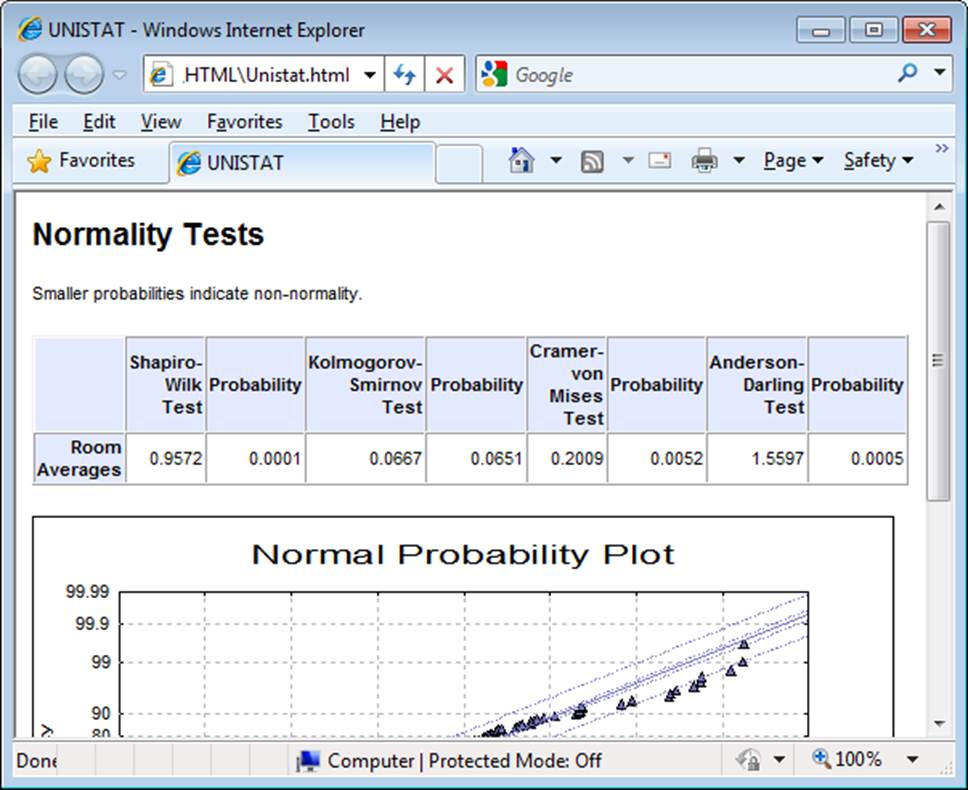
Output is sent to the default web browser in the form of HTML tables and PNG format bitmap images. If the browser is not running already, it will be launched first. When the output is sent to the web browser for the first time, it will appear in the browser automatically. Otherwise, the program will stop and ask whether you want to overwrite the existing files or append the new output to the existing page.
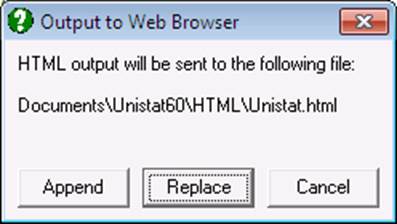
Unlike the Output Window, Word and Excel options (which do not create a file copy of the output), this option will save all text output in the file UNISTAT.HTML in Documents\Unistat10\HTML folder. All graphics images are also saved in the same folder in separate PNG format image files. The .PNG files will be named sequentially as UNI00001.PNG , UNI00002.PNG , etc. until the Overwrite option is selected for new output. When the Overwrite option is selected, all .PNG files (and the UNISTAT.HTML file) are deleted and the counter is set to 1 again. Therefore, it is up to the user to maintain the .HTML and .PNG files and copy them to a different location when necessary.
Image Size: Because PNG files contain bitmap images, they are created by means of displaying the Graphics Editor and capturing the image from screen. Therefore, it is normal to see the graphics images flashing in Graphics Editor window while HTML output is being produced. Another consequence of this process is the size of the graphics images in the HTML output being the same as the current size of the Graphics Editor window. It will be a good idea, therefore, to select the appropriate size of the Graphics Editor window before sending output to the browser.
Width of Output and Blocking: This is exactly as in Output to Word. The number of columns per block can be controlled from Tools → Options dialogue’s Output tab (see 2.4.1.2.4. Word and HTML Tables).
Styles: Each HTML output page contains a CSS Cascading Style Sheet definition section, containing the following styles: main title <h3>, sub title <h4>, paragraph <p>, table heading <th> and table cell <td>. It is possible to modify the appearance by overriding the CSS classes in one place at any time after the output has been generated. Alternatively, you can change the default values of these styles by entering and editing the following lines in Documents\Unistat10\Unistat10.ini file under the [Options] section:
HTMLTitleFont=sans-serif, arial
HTMLTitleFontSize=14
HTMLSubTitleFont=sans-serif, arial
HTMLSubTitleFontSize=11
HTMLParaFont=sans-serif, arial
HTMLParaFontSize=8
HTMLHeadFont=sans-serif, arial
HTMLHeadFontSize=8
HTMLHeadFontBold=strong
HTMLHeadForeColor=black
HTMLHeadBackColor=#c0c0ff
HTMLCellFont=sans-serif, arial
HTMLCellFontSize=8
HTMLCellFontBold=weak
HTMLCellForeColor=black
HTMLCellBackColor=white